Unknown's avatar

About Gilbert Van Hoeydonck

I have worked in education, child protection and mental health. These days I work as an independent writer. My interests include Zen, language, history, productivity, walking, humour, music and climate change mitigation. I am married and have two adult daughters. I love animals, especially cats and goats.

integrate evernote with your to-do list

Most to-do lists nowadays provide the capacity to attach a note to a task. These notes can vary from a couple of lines to extensive web clippings or file attachments. The gold standard these days seems to be whether the productivity app provides integration with evernote. I will look briefly at four that do: omnifocus, nirvana, nozbe and zendone – although ‘integration’ seems to mean something quite different in each case.

A word of warning: this is a rather dry, technical post and if you would rather bail out now I am happy to direct you to a very funny post by a fellow blogger who recently shared his anxieties about niches, target audiences, flagging readership and the like. I can relate to that – my WordPress country stats show me I am yet to make headway into South America, China, Africa and Iceland. Most places, actually. Where are you folks?

If you are still here, thank you. Here we go: Continue reading

ozengo’s productivity principles

Zen is not commonly associated with productivity. However, as a western buddhist working in a large organisation I was able to draw on the clarity, simplicity and integrity that  characterise zen in refining my work habits. Other sources of inspiration over the years were stephen covey’s seven habits of highly effective people (1989) and david allen’s how to get things done – the art of stress-free productivity (2001).

The list below shows what works for me – some steps, strategies and workarounds I have developed for tackling complex projects.

articulate your vision

  • think big, describe what your dream looks like, where you want to be in five, ten years’ time
  • do not let your thinking be constrained by current practices, resource constraints or technical difficulies at this point
  • once you are satisfied with the vision you have articulated, embrace it and and start living accordingly

translate your vision into a broad plan

  • identify what needs to happen for your vision to become a reality
  • start grouping these change areas into domains (for example, research, skills or product development, strategic alliances)
  • identify opportunities for learning and collaboration for each of these domains (for example, online research, formal study, finding a mentor, informal networking)
  • do a ‘skills audit’: can you do this by yourself or within your current team configuration?
  • identify your personal supports: who is already on your side; with whom can you share your progress and frustrations?
  • talk to people – they may come up with great suggestions or point out a ‘blind spot’ in your thinking
  • develop an indicative timeline and costing
  • remember the saying: ‘a vision without action is a daydream; action without a vision a nightmare’

Continue reading

how to take an iPad screenshot

It takes just two steps to take a screenshot of your iPad:

  • press the ‘off’ button on the top right hand side of your iPad and hold it for a second
  • at the same time press the iPad ‘home’ button

You will see the iPad ‘flash’. It has taken a screenshot and sent it to your ‘Photos’ app.

To use the screenshot you just took:

  • open the Photos app
  • go to the camera roll
  • select the screenshot thumbnail
  • click the ‘outgoing’ arrow icon in the top right hand corner of the screen and email the photo to yourself

You can also tweet or print it. Or just stare at it, but then what are you doing looking at productivity stuff.

smitten with scrivener – an app for serious writers

Scrivener has been made by people who understand writing. Thoroughly. They understand focus. They understand the balance between structure and flexibility, between detail and overview. They understand the importance of research. No wonder their app is a joy to use.

But let’s take a step back. Scrivener’s makers, the folk at Literature and Latte, describe the application as ‘a powerful content-generation tool for writers that allows you to concentrate on composing and structuring long and difficult documents.’ Scrivener used to run only on mac operating systems but they recently put out a version for windows. Scrivener is a sophisticated writing application that comes with a range of templates. Only $45 US to purchase; runs like a dream, backs up to dropbox. If you don’t want to take my word for it, you can download the trial version and judge for yourself. This review is of version 2.2 for mac, which I have run on leopard, snow leopard and lion.

When you first fire up scrivener you see a rather modest looking workspace in which a tutorial and an extensive manual figure prominently. The navigation pane on the left offers templates for fiction and non-fiction, scriptwriting, poetry and lyrics.
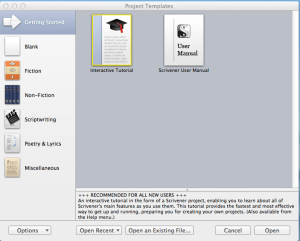
The Scrivener opening screen. Not much by way of eye candy here, but a robust and versatile writing tool.

When you create a document you can look at your work in page view, on a cork board or as an outline. I often use the cork board view to start off work papers or blog posts. It allows you to explore uncertain content, tentatively drafting paragraphs and playing with their order by moving index cards around on the screen. It is a very visual and almost tactile way of working.

Go on, move those paragraphs! Long live drag and drop.

I mainly use scrivener for working on my novel and there I normally work in outline view if I want to tinker with the structure. It is very easy to set up a hierarchical structure where every chapter gets its own folder. The individual scenes are separate documents within that folder. Character notes, ideas, notes, scenes and chapters can all be colour-coded and tagged with metadata such as date created or revised and the number of words.

As you can see I am planning to be more spontaneous in my writing...

When I work on a scene I sometimes keep two navigation panes open. The one on the left of the screen lets me keep the structure of my novel in sight, a bit like a fun version of windows explorer; the one on the right shows my synopsis of the scene I am developing and provides a notes section. These notes are handy because I keep being surprised about the number of continuity issues that arise as you start writing a novel. And this is my first attempt, by the way; I am a total rookie, a noob.

At times, however, you do not want to see anything other than your text and then scrivener lets you switch to a full screen view where, apart from the text, everything else is blacked out. Even this is done cleverly, as a sliding menu bar at the bottom of the screen lets you adjust the density of the background and the width of your paper.

Scrivener also provides templates for describing the characters and places that figure in your novel. At first I thought this would be overkill. This was, after all, a moderately wild and creative project; not a dour project brief. Hm, have I said I was a newbie? Did I mention continuity issues? After only a couple of scenes I found some characters all of a sudden being ten years older than I had envisaged, or living in a different suburb than the one mentioned before. I realised, in a very concrete way, that writing fiction involves not only creating credible characters, but also determining the complex interplay of their preferences, habits and relationships that underpins the narrative. That is when I swallowed my pride and returned to developing those backstories.

Writing and outline views, you may say – can’t you do all of that in word or pages? Sure, but scrivener offers so many other features. There is a research folder for storing all notes, images and web clippings related to your project. One of the most compelling features for me is the capacity to split the editor in order to view two passages side by side, within the same document. This enables you to check, for example, whether you have used the same phrase or image twice in describing a minor character, or whether you have unwittingly changed that malcolm character from a beefy rugby playing real estate agent to a quiet librarian with a goatee. You can also set yourself a target and scrivener will obligingly nag you if you do not attain the requisite number of words. I get hassled enough about timelines as it is, so I pass on that feature. It might be a life-saver, though, if you use scrivener for essay or dissertation writing. When your text is ready, scrivener will compile all your separate documents into a single manuscript for final formatting, submission to an editor or e-book self-publishing.

So any improvements? I am still smitten with this software and cannot think of any at this stage. Suggestions? Sure, how about an ipad version? Feel free to lobby the people at literature and latte, who brought you this fantastic app. Must go; I have a novel to write. Wish me luck.

zendone: ‘a beautiful productivity tool for getting things done’

Zendone is an elegant new productivity app that provides seamless integration with evernote and google calendar. It is so new, in fact, that it is still in beta; the version I tinkered with was 0.7.5.

the zendone homepage with its slightly steampunk bumblebee

Setting up your zendone account involves providing an email address and creating a password. You are then ready to use zendone as a straight task manager. The multiplier effect for this app, however, comes from combining it with evernote and google calendars. Preparing your evernote account for zendone integration involves setting up a default folder in evernote called ‘@inbox’ and another one called ‘archive’. The zendone preferences pane and some preloaded ‘tutorial tasks’ guide you through this process. Zendone also creates new calendars in a nominated google calendar: one for each area of responsibility (e.g. work, home) and one for completed tasks.

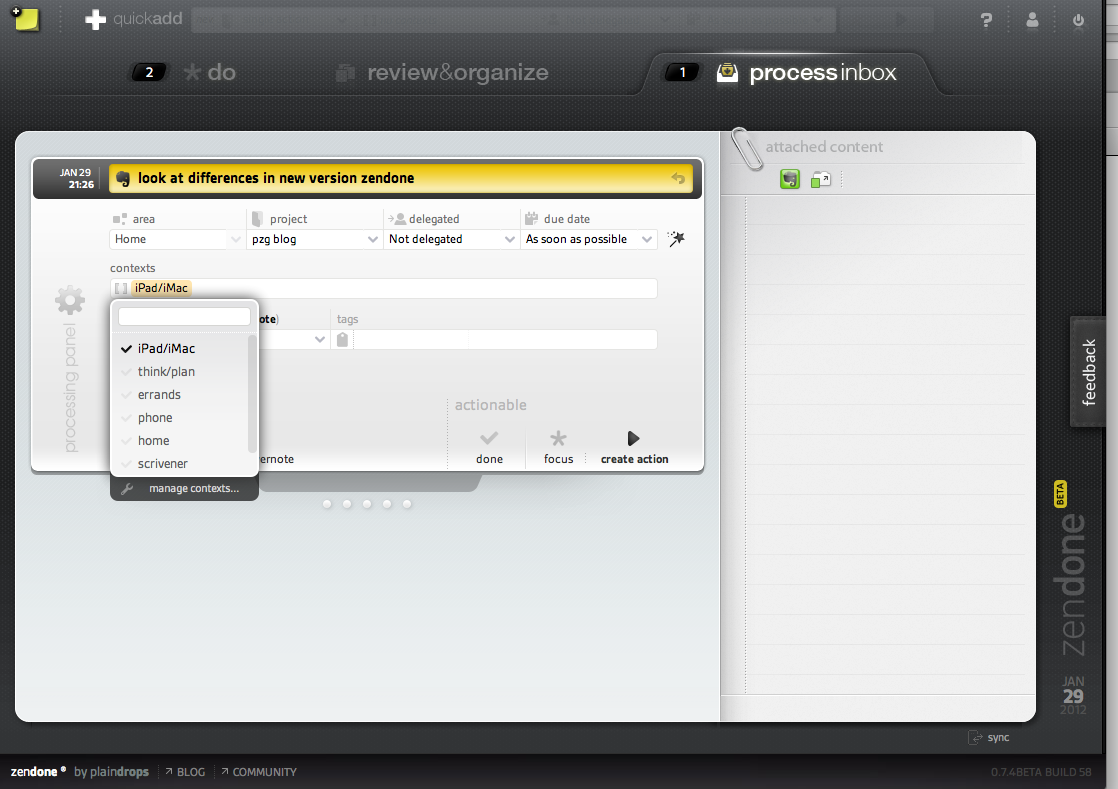
Any tasks that you create in, or email to your evernote account, appear in zendone’s inbox within seconds. The inbox is where you collect and process your tasks. They can be delegated, allocated to a project and given a context, a tag or a completion date.

elephant meets bumblebee: a task created in evernote shows up in the zendone inbox

The user interface is clean, elegant and logical. A limitation with how you describe tasks is that the repeat function at present only provides ‘every‘ as the frequency option. I would also like to see an option to restart a task from its completion date (you make a mortgage repayment every month but you may decide to clear your gutters after three months). There is also no option to enter task duration (like in omnifocus or toodledo); and the absence of that parameter means that you cannot bring up a list of brief tasks (though creating a context for these could be a workaround). The zendone team appears to be thorough and responsive and I hope that these minor issues can be addressed in the final version.

The next phase in David Allen’s Getting Things Done™ (GTD)™ process involves reviewing and organising your tasks. In zendone, new tasks are added at the bottom of the respective list. I could not find an option to sort tasks automatically by due date, but you can drag and drop them to sort them into an order that makes sense to you. The navigation pane can be hidden from view and you can click underneath a project list to show completed actions for that project.

The zendone ‘review & organise’ pane. Note the filters in the navigation pane on the left.

The main functionality I miss here is the capacity to have nested tasks (as in omnifocus, toodledo and todoist) and the capacity to save project templates or to schedule reviews (as in omnifocus).

The ‘do’ view is again clean and uncluttered. You can choose to see all your priority tasks (marked with a chunky big star) or only those of a particular area of responsibility (such as work or home). You can also filter tasks by context. No demoralising sea of red here: overdue tasks have three discreet red dots in front of them. Two panes at the bottom of the screen can slide open to show recently received and/or completed tasks.

Zendone’s ‘do’ view.

There is much to like here and the app keeps getting better: the zendone team rolled out functionality improvements twice in the four days it took me to review the app and write this post. This is a great app if you want to add a productivity dimension to your evernote and/or your google calendar. Zendone is a delight to use even though its functionality is more limited than that of omnifocus. On the other hand, it is easier to pick up than OF. While omnifocus is fairly expensive to buy, zendone will not be a free app – there is talk about a ‘reasonable’ monthly fee.

Personally, I find using a calendar for task management suffocating (but you can disable the evernote and google integration if you wish). The main dealbreaker for me is that zendone will only run on ‘a modern version’ of chrome, safari or firefox. For me, that means I would only be able to use the app at home. It won’t run in safari on my iPad 2 (OS 5.0.1) and at work the network is still using internet explorer 6 (mordac alert for all you dilbert fans out there).

Finally, I just wanted to make clear that I have no commercial interest in zendone (or omnifocus) and that I am not an expert in productivity apps – just an interested user. And to you folks out there at zendone: congratulations on your achievement and please feel free to post a correction in the comments section if I have misrepresented any aspect of your work.

Update (28-09-12)

Version 0.8.0 of zendone was released in July 2012, rolling out some significant enhancements:

  • actions can now be grouped in the ‘review & organize’ view
  • a ‘next task’ filter enables you to view only those tasks that need to be completed in order to move each of your projects a step forward
  • you can now bring up next actions in the ‘do’ view and decide which ones to add to the starred items of your focus list
  • zendone now has a fast and accurate search function.

You can find more detail about these changes on the zendone blog.

newbie guide to digital self-publishing

My first experience with self-publishing was in the early 1970s. Think Jethro Tull and corduroy flares. I had written 30-odd poems and an uncle who taught young people with learning difficulties had run them off at work on a stencilling machine. His charges had created a rather lurid psychedelic pattern of bright red and teal blobs for the cover design. It had no discernible link to the contents of the slim volume, except that, like my poetry, it was a bit all over the place. It was all very high tech and professional, at the time. Distribution proved another challenge. The first five copies were easy of course (thanks Mum). As none of the local bookstores were interested, I ended up peddling my poetry at the end of pop concerts. That sort of worked, as people were generally in a good mood. I would target couples, handing a sample copy to the girl. If I was lucky she would say something profound like ‘oh, poetry’ and look up at her beau. The guy would then buy a copy, mainly to get rid of me I think. At least in those days you didn’t have to compete with long-stemmed roses. I think I sold some 60 copies and gave away another 25 (out of a print run of 100 copies).

Fast forward a couple of decades and I am once again contemplating self-publishing. This time, the whole publishing industry is in turmoil, with book store chains collapsing faster than you can say incunabulum. The likelihood of an unknown author landing a commercial contract for a novel is way outside the probability curve; just about as plausible as someone completing a PhD thesis on the Afghan Navy.

Yet, in a sweetly ironic way, the factors that led to this state of affairs, such as globalisation and the digital age, also contain solutions for aspiring authors.

I decided to ramp up my writing this year, as I have spent too much time on other people’s priorities and life is short. I also started thinking about publishing again and felt bewildered. Sure, I had downloaded and read e-books, but had never thought about them from an author’s perspective. Do you just upload a Word file? What about copyright, plagiarism and piracy? How could authors possibly survive with novels priced from $0.99 on Amazon?

I started googling and felt incredibly lucky that one of the first resources I came across was David Gaughran’s blog: Let’s get digital. How to self-publish, and why you should. The blog contains a wealth of information, including a link to David’s 180-page Let’s get digital guide published in July 2011.

The first part of the guide starts with an overview of the publishing industry in this era of digital revolution. David believes that ‘print is doomed’, bedevilled by rising costs, fewer outlets, short sale timeframes and reducing market share. The e-book, by contrast, will profit from an upward spiral driven by growing acceptance, low production costs and the capacity to maintain backlists almost indefinitely. David debunks a number of myths about self-publishing and shows, for example, that a self-publishing author can recoup production costs and earn royalties comparable to the advance offered by trade publishers.

The second part of the guide provides an overview of the self-publishing process. David explains how you can prepare your e-book for submission to different publishers (such as Amazon, Barnes & Noble and Smashwords) and emphasises the need to engage professionals for final editing and the book cover. He canvasses a number of pricing strategies and explains how you can use blogging and social networking to develop a marketing strategy that can continue to drive sales.

The third section consists of testimonials of more than thirty writers who have gone down the self-publishing path; and a final section provides advice on a range of issues including international markets, short story publishing and a list of writing resources.

This comprehensive guide testifies, not only to David’s professionalism as a writer, but also to his generosity of spirit in sharing this valuable resource – the product of hours of hard work – as a free download with anyone interested. As a fellow writer I seriously ask anyone downloading the guide to make a donation to David (there is a link to his PayPal account). The price of a long-stemmed rose maybe…

keeping a journal with day one

Write frequently, and it will become a habit. Words will queue up helpfully in your cortex to help you express thoughts with precision and poise. Hm, that’s the idea anyway. I certainly value any app that helps me to maintain my writing routine.

A program that I now use on a daily basis is day one, which comes in an iPad/iPhone ($1.99) and a mac desktop ($10.49) version. The screenshot below is from the desktop version.

I find the clear and crisp layout stimulating, but that’s a personal thing. Entries are automatically date stamped but you can also make an entry retrospectively. Clicking on the ‘days’ link in the navigation pane brings up a nicely laid out list of dates with a preview of the entry for each date. Clicking on the ‘calendar’ view brings up a monthly view, highlighting the dates that contain an entry. Hovering the mouse cursor over a date brings up a callout box showing the entry for that day. It is very easy to set up a reminder, which will gently nag you into persisting with your creativity.

Both versions can be password protected. They synchronise fast and reliably via dropbox. Entries can also be emailed or tweeted from the iPad/iPhone version.

I have started writing a novel and use scrivener for that project – it is a fantastic program that I will review in a separate post. As I work full-time, I can work on my novel only sporadically and I find day one a stimulating program that helps me to maintain my skills in between those precious longer bursts of writing.

the ten apps of the high-functioning iPad

Over the past few months several colleagues have approached me after they had bought an iPad. Having just shelled out for their shiny new toy, they were in ‘what now’ territory, that electronic no-man’s land between cupertino packaging and a fully customised device. Some had seen me use outliners and project management software (Merlin 2) and they were keen to start using their new acquisition in the work environment. But what to buy; and how to find good stuff on that seemingly bloated app store?

Everyone’s needs are different (truism alert, ozengo), but the following apps would provide a good start for many users who are keen to use an iPad in the workplace. Please note that I am just an ordinary user, not an expert, and that I cannot accept any liability for any adverse consequences resulting from people using any of the apps listed below (such as the IMF accidentally switching to the drachma, or worse).

  1. Dropbox. An online file management system. Key documents uploaded to Dropbox are available across all your nominated computers and devices. Fast, reliable and free (up to 2Gb, with the option of paying for more storage). The most efficient way of getting files on and off your iPad – a must-have.
  2. Evernote. Write notes or capture them in a variety of ways (photo, email, audio, web-clipping). Your notes can be tagged, organised by category and shared across devices. Excellent search function. This incredibly robust and versatile app is another must-have on every iPad and desktop. The basic version is free.
  3. Pages. Apple’s word-processing software, beautifully adapted for the iPad. Use Dropbox and/or email to transfer files back to your desktop. This app handles basic Word documents and costs around $10 – check the iTunes app store for details. A cheaper alternative is PlainText, a beautifully designed free app.
  4. Numbers. Apple’s spreadsheet software, again beautifully adapted for the iPad. The app handles Excel documents (at least the basic flat files that I use) and costs around $10 – check the app store for details.
  5. Keynote. An excellent presentation package. I use it to draft and edit swish-looking presentations  (which I sometimes, reluctantly, have to convert to the drab corporate look). Like the other apps from the iWork suite this one costs around $10 – see the app store for details – and it handles PowerPoint files.
  6. iBooks. This excellent reader, which can be downloaded free from the app store, divides its ‘collections’ into books and pdfs. By going into your iTunes app and selecting ‘add to library’ from the file menu you can upload all sorts of pdfs onto your iPad. My iBooks pdf collection contains manuals, org charts and even a complete Act of Parliament. A favourite trick of mine is to upload my copy of meeting papers as a pdf. More often than not the papers are no longer required after the meeting and I can just delete them, helping to minimise my carbon footprint. If you need the capacity to annotate pdfs, you may want to consider iannotate ($10.49).
  7. You may need a task management app. I recommend Omnifocus (see previous post) if you are a Mac user or happy to use just the iPad and iPhone versions; GQueues if you need a browser-based app alongside your mobile devices or work in a Windows environment. Both apps are reviewed elsewhere on this blog.
  8. I use iThougthsHD ($10.49) as mind mapping/brainstorming software. Nice graphics, powerful yet easy to use and synchronises with Dropbox.
  9. Calling Soulver ($6.49) a calculator does not do justice to this multi-faceted app. It doubles as a currency converter and does all sorts of magical maths stuff that goes far beyond my needs and understanding. However, the most compelling feature for me is its customised buttons for percentage work (such as % of, % off, as a % of and others). You can also save the steps in your reasoning and calculations as neat little files that can be accessed from the navigation pane.
  10. Finally, every working boy or gal needs a good listing app, if only to combat listlessness in the workplace (groan – sorry). I use my checklists to keep track of committee members, meeting papers, recurrent processes, stuff to pack for conferences or site visits and the like. My favourites are Zenbe ($5.49) and CarbonFin ($5.49). CarbonFin is much more than a list program. It is a powerful outliner that can be used as a simple task manager, including basic project management tasks. It synchronises with a desktop version. In spite of this, I tend to use Zenbe more and it is always on my home page. I love them both.

Using the above apps (and MS-Project/Merlin 2) I manage to do all the work associated with three-day site visits for major review projects that I undertake as part of my job, leaving the laptop at home. I do chuck the wireless keyboard in my backpack if I expect to do a lot of word processing.

Update (21 October 2012)

Just a quick note to let you know that Zenbe appears to have gone out of business and that the app is no longer supported.

omnifocus: the holy grail of productivity

I started using Omnifocus in mid-2009 when I moved from Windows to Mac, initially only for one-off personal tasks. At work, in a Windows-based environment, I was already using ToodleDo. While I initially liked the simplicity and versatility of Omnifocus, it started feeling complicated and overwhelming once I added in all my recurrent tasks after a year or so. I was missing a clear ‘today’ view and felt paralysed by the many ‘overdue’ tasks. I bailed out and tried alternatives including (in order of preference) ToDoist, NozBe, 2Do, MyProjects, Things and Wunderlist. I agree, dear reader, none of this made me particularly productive. And as my youngest daughter would say: ‘first world problem, dad’ – and she was right of course. As every other app at some stage confronted me with a deal-breaker, I eventually returned to Omnifocus, delved a bit deeper into the documentation and came to the conclusion that I had been overusing due dates and under-utilising ‘perspectives’. I have since overhauled my Omnifocus setup, brought in all my work tasks and I am now loving it.

The best features of Omnifocus for me are:

  1. It has a built-in review process that encourages you to review your tasks and workflow regularly.
  2. It allows you to specify whether tasks in a project are sequential or parallel.
  3. The availability filter makes it easy to focus on those tasks that you can complete now and a special ‘focus’ button lets you concentrate on a single project or context to minimise distractions.
  4. It allows you to create project templates that you can save for future use. As I am a project manager, this feature, together with nested (i.e. indented) tasks, was a major selling point.
  5. It is incredibly flexible, customisable and robust. Notes added to tasks can be one line or an entire web page.
  6. Data can be entered in a variety of ways including quick entry, email, web clipping and linking with Evernote. The default location for new tasks is the inbox.
  7. The iPad version is fantastic, introducing features like a calendar view and ‘drag and drop’ that complement the functionality of the desktop version and making it fun to review projects (some people say I should go out more).
  8. Omnifocus comes with all the bells and whistles you can expect of contemporary task managers, including nested tasks, location services and a search capacity. It comes with a good manual and is fully compatible with the GTD approach.

I see its limitations as follows:

  1. While Omnifocus is easy to start using, you probably need to invest a bit of time to understand the full potential of this application.
  2. It is not cheap. When I last looked, the iMac version was US $79.99, the iPad version US $39.99 and the iPhone version US $19.99.
  3. The desktop version runs only on the Mac operating system.

I have seen many people ask questions about Omnifocus and other task management applications in online forums. If you are one of them, I hope this post helps you make a more informed decision.