eloping with firetask

Firetask is a promising GTD-based productivity app with the simple ‘feel’ of a traditional to-do list. It has a well-designed beautiful interface and enough functionality to give well-established apps like things and omnifocus a run for their money. I have reviewed the mac desktop and the ipad apps (both version 2.2); there is no windows version.

While firetask is not perfect, it has almost done the unthinkable: prised me away from omnifocus. It has been like a suitor in a jane austen novel: maybe not the most sensible and respectable choice, but irresistible because of its colour and freshness. I want to spend time in the app, and that is a feeling I haven’t had with omnifocus for a long time. So, after a brief stint with the trial version, I decided to throw caution to the wind and to elope with firetask. Will it end in tears? Continue reading

toodledo: weird name, solid app

In my student days, back in belgium, the citroen ‘deux chevaux’ (two horsepower) was known as the ‘ugly duckling’. It was weird and quirky (with the gear stick in the dash rather than on the floor) but it was cheap and reliable, a solid workhorse.

Toodledo is the 2CV of productivity apps: not much to look at, but it won’t let you down and has a lot of surprises under the bonnet.

To start with, toodledo is fully compatible with the ‘getting things done‘™ (GTD™) approach developed by david allen. Projects, contexts, priorities, tags, status, due dates, filters, locations – it is all there. It is also highly customisable: if you want to run toodledo as a simple task list, you can. If you want to track the time a task is due rather than just the date, or track how much time you have spent on a task, it will let you do that too. You just choose in ‘settings’ which fields you want to use and you can always revisit those decisions. Continue reading

nozbe launches desktop versions

Today marks the launch of new desktop versions for windows and mac of the nozbe productivity app. This post is a fully independent review of version 1.00 of the mac desktop version, which I am running on os 10.7.3  (lion).

Nozbe is the brainchild of michael swilinski of apivision, whose website describes the software as a ‘web-based time- and project-management application for busy people and teams’.

Nozbe has been available as a browser-based app for five years. More recently, the company released apps for the ipad and the iphone. The desktop version can be downloaded for free from the nozbe website. It works faster than the browser version and lets you work offline. Continue reading

integrate evernote with your to-do list

Most to-do lists nowadays provide the capacity to attach a note to a task. These notes can vary from a couple of lines to extensive web clippings or file attachments. The gold standard these days seems to be whether the productivity app provides integration with evernote. I will look briefly at four that do: omnifocus, nirvana, nozbe and zendone – although ‘integration’ seems to mean something quite different in each case.

A word of warning: this is a rather dry, technical post and if you would rather bail out now I am happy to direct you to a very funny post by a fellow blogger who recently shared his anxieties about niches, target audiences, flagging readership and the like. I can relate to that – my WordPress country stats show me I am yet to make headway into South America, China, Africa and Iceland. Most places, actually. Where are you folks?

If you are still here, thank you. Here we go: Continue reading

ozengo’s productivity principles

Zen is not commonly associated with productivity. However, as a western buddhist working in a large organisation I was able to draw on the clarity, simplicity and integrity that  characterise zen in refining my work habits. Other sources of inspiration over the years were stephen covey’s seven habits of highly effective people (1989) and david allen’s how to get things done – the art of stress-free productivity (2001).

The list below shows what works for me – some steps, strategies and workarounds I have developed for tackling complex projects.

articulate your vision

  • think big, describe what your dream looks like, where you want to be in five, ten years’ time
  • do not let your thinking be constrained by current practices, resource constraints or technical difficulies at this point
  • once you are satisfied with the vision you have articulated, embrace it and and start living accordingly

translate your vision into a broad plan

  • identify what needs to happen for your vision to become a reality
  • start grouping these change areas into domains (for example, research, skills or product development, strategic alliances)
  • identify opportunities for learning and collaboration for each of these domains (for example, online research, formal study, finding a mentor, informal networking)
  • do a ‘skills audit’: can you do this by yourself or within your current team configuration?
  • identify your personal supports: who is already on your side; with whom can you share your progress and frustrations?
  • talk to people – they may come up with great suggestions or point out a ‘blind spot’ in your thinking
  • develop an indicative timeline and costing
  • remember the saying: ‘a vision without action is a daydream; action without a vision a nightmare’

Continue reading

how to take an iPad screenshot

It takes just two steps to take a screenshot of your iPad:

  • press the ‘off’ button on the top right hand side of your iPad and hold it for a second
  • at the same time press the iPad ‘home’ button

You will see the iPad ‘flash’. It has taken a screenshot and sent it to your ‘Photos’ app.

To use the screenshot you just took:

  • open the Photos app
  • go to the camera roll
  • select the screenshot thumbnail
  • click the ‘outgoing’ arrow icon in the top right hand corner of the screen and email the photo to yourself

You can also tweet or print it. Or just stare at it, but then what are you doing looking at productivity stuff.

zendone: ‘a beautiful productivity tool for getting things done’

Zendone is an elegant new productivity app that provides seamless integration with evernote and google calendar. It is so new, in fact, that it is still in beta; the version I tinkered with was 0.7.5.

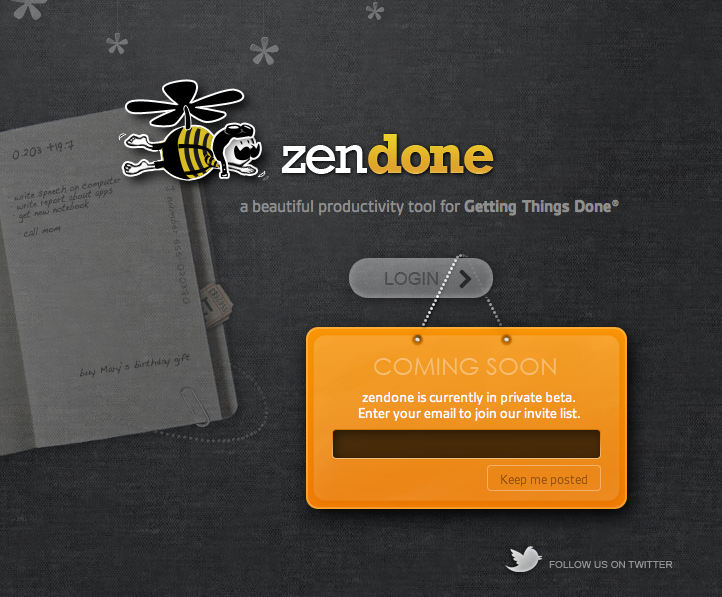
the zendone homepage with its slightly steampunk bumblebee

Setting up your zendone account involves providing an email address and creating a password. You are then ready to use zendone as a straight task manager. The multiplier effect for this app, however, comes from combining it with evernote and google calendars. Preparing your evernote account for zendone integration involves setting up a default folder in evernote called ‘@inbox’ and another one called ‘archive’. The zendone preferences pane and some preloaded ‘tutorial tasks’ guide you through this process. Zendone also creates new calendars in a nominated google calendar: one for each area of responsibility (e.g. work, home) and one for completed tasks.

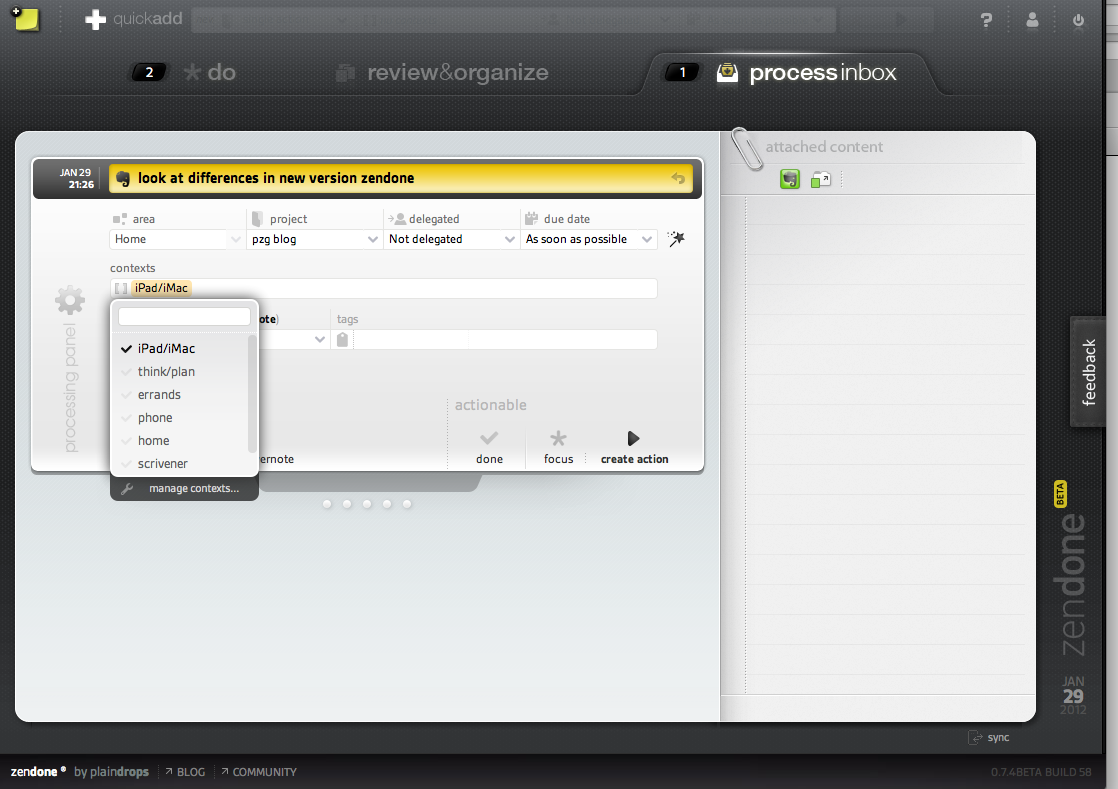
Any tasks that you create in, or email to your evernote account, appear in zendone’s inbox within seconds. The inbox is where you collect and process your tasks. They can be delegated, allocated to a project and given a context, a tag or a completion date.

elephant meets bumblebee: a task created in evernote shows up in the zendone inbox

The user interface is clean, elegant and logical. A limitation with how you describe tasks is that the repeat function at present only provides ‘every‘ as the frequency option. I would also like to see an option to restart a task from its completion date (you make a mortgage repayment every month but you may decide to clear your gutters after three months). There is also no option to enter task duration (like in omnifocus or toodledo); and the absence of that parameter means that you cannot bring up a list of brief tasks (though creating a context for these could be a workaround). The zendone team appears to be thorough and responsive and I hope that these minor issues can be addressed in the final version.

The next phase in David Allen’s Getting Things Done™ (GTD)™ process involves reviewing and organising your tasks. In zendone, new tasks are added at the bottom of the respective list. I could not find an option to sort tasks automatically by due date, but you can drag and drop them to sort them into an order that makes sense to you. The navigation pane can be hidden from view and you can click underneath a project list to show completed actions for that project.

The zendone ‘review & organise’ pane. Note the filters in the navigation pane on the left.

The main functionality I miss here is the capacity to have nested tasks (as in omnifocus, toodledo and todoist) and the capacity to save project templates or to schedule reviews (as in omnifocus).

The ‘do’ view is again clean and uncluttered. You can choose to see all your priority tasks (marked with a chunky big star) or only those of a particular area of responsibility (such as work or home). You can also filter tasks by context. No demoralising sea of red here: overdue tasks have three discreet red dots in front of them. Two panes at the bottom of the screen can slide open to show recently received and/or completed tasks.
Zendone’s ‘do’ view.

There is much to like here and the app keeps getting better: the zendone team rolled out functionality improvements twice in the four days it took me to review the app and write this post. This is a great app if you want to add a productivity dimension to your evernote and/or your google calendar. Zendone is a delight to use even though its functionality is more limited than that of omnifocus. On the other hand, it is easier to pick up than OF. While omnifocus is fairly expensive to buy, zendone will not be a free app – there is talk about a ‘reasonable’ monthly fee.

Personally, I find using a calendar for task management suffocating (but you can disable the evernote and google integration if you wish). The main dealbreaker for me is that zendone will only run on ‘a modern version’ of chrome, safari or firefox. For me, that means I would only be able to use the app at home. It won’t run in safari on my iPad 2 (OS 5.0.1) and at work the network is still using internet explorer 6 (mordac alert for all you dilbert fans out there).

Finally, I just wanted to make clear that I have no commercial interest in zendone (or omnifocus) and that I am not an expert in productivity apps – just an interested user. And to you folks out there at zendone: congratulations on your achievement and please feel free to post a correction in the comments section if I have misrepresented any aspect of your work.

Update (28-09-12)

Version 0.8.0 of zendone was released in July 2012, rolling out some significant enhancements:

  • actions can now be grouped in the ‘review & organize’ view
  • a ‘next task’ filter enables you to view only those tasks that need to be completed in order to move each of your projects a step forward
  • you can now bring up next actions in the ‘do’ view and decide which ones to add to the starred items of your focus list
  • zendone now has a fast and accurate search function.

You can find more detail about these changes on the zendone blog.

the ten apps of the high-functioning iPad

Over the past few months several colleagues have approached me after they had bought an iPad. Having just shelled out for their shiny new toy, they were in ‘what now’ territory, that electronic no-man’s land between cupertino packaging and a fully customised device. Some had seen me use outliners and project management software (Merlin 2) and they were keen to start using their new acquisition in the work environment. But what to buy; and how to find good stuff on that seemingly bloated app store?

Everyone’s needs are different (truism alert, ozengo), but the following apps would provide a good start for many users who are keen to use an iPad in the workplace. Please note that I am just an ordinary user, not an expert, and that I cannot accept any liability for any adverse consequences resulting from people using any of the apps listed below (such as the IMF accidentally switching to the drachma, or worse).

  1. Dropbox. An online file management system. Key documents uploaded to Dropbox are available across all your nominated computers and devices. Fast, reliable and free (up to 2Gb, with the option of paying for more storage). The most efficient way of getting files on and off your iPad – a must-have.
  2. Evernote. Write notes or capture them in a variety of ways (photo, email, audio, web-clipping). Your notes can be tagged, organised by category and shared across devices. Excellent search function. This incredibly robust and versatile app is another must-have on every iPad and desktop. The basic version is free.
  3. Pages. Apple’s word-processing software, beautifully adapted for the iPad. Use Dropbox and/or email to transfer files back to your desktop. This app handles basic Word documents and costs around $10 – check the iTunes app store for details. A cheaper alternative is PlainText, a beautifully designed free app.
  4. Numbers. Apple’s spreadsheet software, again beautifully adapted for the iPad. The app handles Excel documents (at least the basic flat files that I use) and costs around $10 – check the app store for details.
  5. Keynote. An excellent presentation package. I use it to draft and edit swish-looking presentations  (which I sometimes, reluctantly, have to convert to the drab corporate look). Like the other apps from the iWork suite this one costs around $10 – see the app store for details – and it handles PowerPoint files.
  6. iBooks. This excellent reader, which can be downloaded free from the app store, divides its ‘collections’ into books and pdfs. By going into your iTunes app and selecting ‘add to library’ from the file menu you can upload all sorts of pdfs onto your iPad. My iBooks pdf collection contains manuals, org charts and even a complete Act of Parliament. A favourite trick of mine is to upload my copy of meeting papers as a pdf. More often than not the papers are no longer required after the meeting and I can just delete them, helping to minimise my carbon footprint. If you need the capacity to annotate pdfs, you may want to consider iannotate ($10.49).
  7. You may need a task management app. I recommend Omnifocus (see previous post) if you are a Mac user or happy to use just the iPad and iPhone versions; GQueues if you need a browser-based app alongside your mobile devices or work in a Windows environment. Both apps are reviewed elsewhere on this blog.
  8. I use iThougthsHD ($10.49) as mind mapping/brainstorming software. Nice graphics, powerful yet easy to use and synchronises with Dropbox.
  9. Calling Soulver ($6.49) a calculator does not do justice to this multi-faceted app. It doubles as a currency converter and does all sorts of magical maths stuff that goes far beyond my needs and understanding. However, the most compelling feature for me is its customised buttons for percentage work (such as % of, % off, as a % of and others). You can also save the steps in your reasoning and calculations as neat little files that can be accessed from the navigation pane.
  10. Finally, every working boy or gal needs a good listing app, if only to combat listlessness in the workplace (groan – sorry). I use my checklists to keep track of committee members, meeting papers, recurrent processes, stuff to pack for conferences or site visits and the like. My favourites are Zenbe ($5.49) and CarbonFin ($5.49). CarbonFin is much more than a list program. It is a powerful outliner that can be used as a simple task manager, including basic project management tasks. It synchronises with a desktop version. In spite of this, I tend to use Zenbe more and it is always on my home page. I love them both.

Using the above apps (and MS-Project/Merlin 2) I manage to do all the work associated with three-day site visits for major review projects that I undertake as part of my job, leaving the laptop at home. I do chuck the wireless keyboard in my backpack if I expect to do a lot of word processing.

Update (21 October 2012)

Just a quick note to let you know that Zenbe appears to have gone out of business and that the app is no longer supported.

omnifocus: the holy grail of productivity

I started using Omnifocus in mid-2009 when I moved from Windows to Mac, initially only for one-off personal tasks. At work, in a Windows-based environment, I was already using ToodleDo. While I initially liked the simplicity and versatility of Omnifocus, it started feeling complicated and overwhelming once I added in all my recurrent tasks after a year or so. I was missing a clear ‘today’ view and felt paralysed by the many ‘overdue’ tasks. I bailed out and tried alternatives including (in order of preference) ToDoist, NozBe, 2Do, MyProjects, Things and Wunderlist. I agree, dear reader, none of this made me particularly productive. And as my youngest daughter would say: ‘first world problem, dad’ – and she was right of course. As every other app at some stage confronted me with a deal-breaker, I eventually returned to Omnifocus, delved a bit deeper into the documentation and came to the conclusion that I had been overusing due dates and under-utilising ‘perspectives’. I have since overhauled my Omnifocus setup, brought in all my work tasks and I am now loving it.

The best features of Omnifocus for me are:

  1. It has a built-in review process that encourages you to review your tasks and workflow regularly.
  2. It allows you to specify whether tasks in a project are sequential or parallel.
  3. The availability filter makes it easy to focus on those tasks that you can complete now and a special ‘focus’ button lets you concentrate on a single project or context to minimise distractions.
  4. It allows you to create project templates that you can save for future use. As I am a project manager, this feature, together with nested (i.e. indented) tasks, was a major selling point.
  5. It is incredibly flexible, customisable and robust. Notes added to tasks can be one line or an entire web page.
  6. Data can be entered in a variety of ways including quick entry, email, web clipping and linking with Evernote. The default location for new tasks is the inbox.
  7. The iPad version is fantastic, introducing features like a calendar view and ‘drag and drop’ that complement the functionality of the desktop version and making it fun to review projects (some people say I should go out more).
  8. Omnifocus comes with all the bells and whistles you can expect of contemporary task managers, including nested tasks, location services and a search capacity. It comes with a good manual and is fully compatible with the GTD approach.

I see its limitations as follows:

  1. While Omnifocus is easy to start using, you probably need to invest a bit of time to understand the full potential of this application.
  2. It is not cheap. When I last looked, the iMac version was US $79.99, the iPad version US $39.99 and the iPhone version US $19.99.
  3. The desktop version runs only on the Mac operating system.

I have seen many people ask questions about Omnifocus and other task management applications in online forums. If you are one of them, I hope this post helps you make a more informed decision.

the quest for productivity

Lists. I love them. For years I kept lists of things to do, to pack, to read, to eat. Once I even thought it would be cool to make a list of lists to make. It must be genetic. Call it listlust. Anyhow, when it came to work I used to write my to do list in one of those heavy blue Collins diaries that showed a day to a page. I ticked off, or crossed out, whatever was done, and inevitably ended up transferring many tasks to the next day or the following week. It involved a lot of writing, and a lot of cross-checking to make sure that all tasks had been carried forward. In the early nineties they installed Lotus Notes on our computers at work and the developers had taken great care to make their electronic diary resemble our paper diaries as much as possible. I suppose it was a matter of minimising the shock of the new. Ah, those days of trompe-l’oeil productivity, with pretend ringbinders and fake leather covers.

Over the years, electronic to do lists have developed a format of their own, gradually introducing more functionality, such as the capacity to sort tasks by due date or priority, to create repeating tasks and to group related tasks into categories or projects. They have also evolved from one-dimensional lists to multi-dimensional productivity systems that are sometimes underpinned by a strong conceptual framework. One of the best known of these is probably the Getting Things Done (GTD) approach developed by David Allen. His 2001 magnum opus, subtitled the art of stress-free productivity, has spawned a myriad of applications for desktop computers and handheld devices.

David Allen emphasises the need to adopt ‘a trusted system’, in which you can record every single actionable thought as you go. For me, that trusted system is Omnifocus, having earlier tried Remember the Milk and ToodleDo. The latter two were worthy contenders, especially ToodleDo, which has nested tasks. As browser-based applications, they run on Windows and Mac, whereas Omnifocus comes in a Mac desktop version only, with separate apps for the iPhone and the iPad.

In a future post I will explain why I have decided to go with Omnifocus. I may also introduce some promising new productivity apps, including Asana and ZenDone.